How to Use PictStamp
Menu
Add Main Image or Video
Watermark Images
Watermark Text
Save & Share
Clear
Menu
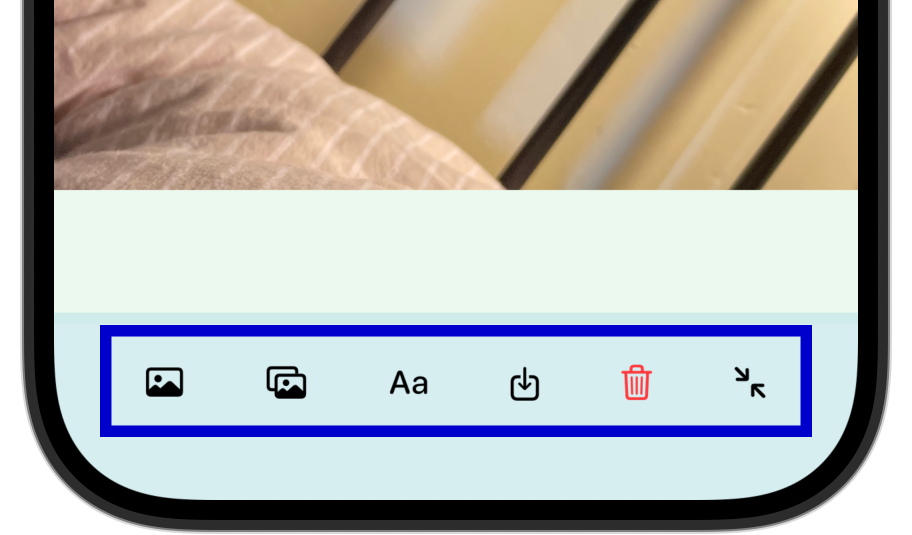
Access all PictStamp features from the menu.
Add Main Image or Video
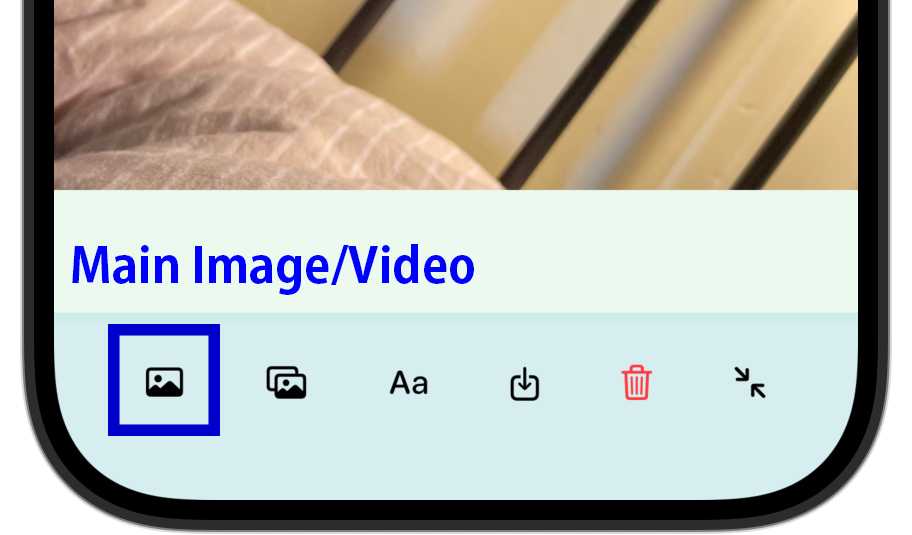
This feature allows you to add the base image or video for editing. You can select PNG, JPG, or HEIC images, and MP4 or MOV videos. First, select the main image or video.
For still images, you can import up to 5 at once and edit watermarks on all of them together.
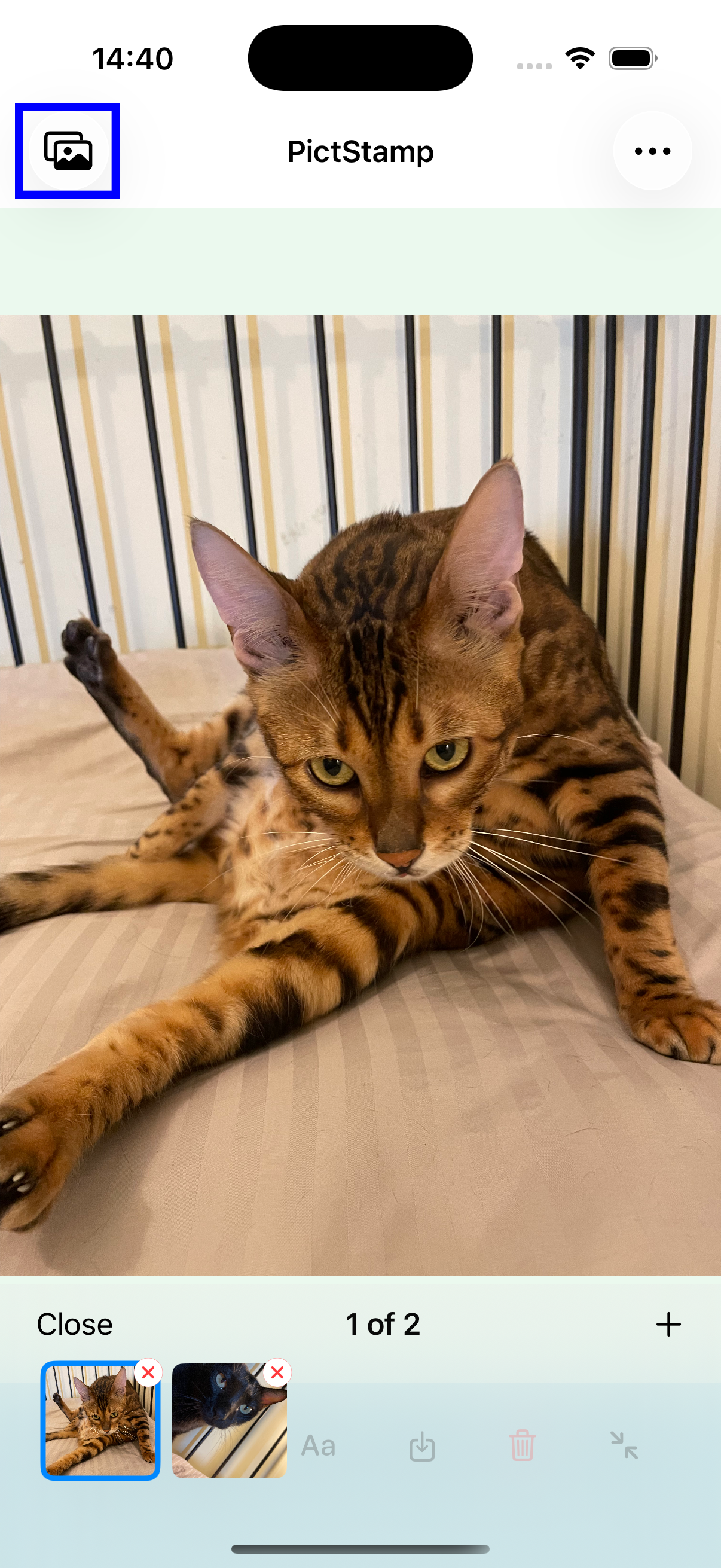
After importing images, swipe left or right, or tap the icon in the upper left to switch between images and edit each one individually.
* Watermark images and watermark texts can be added after selecting the main image or video.
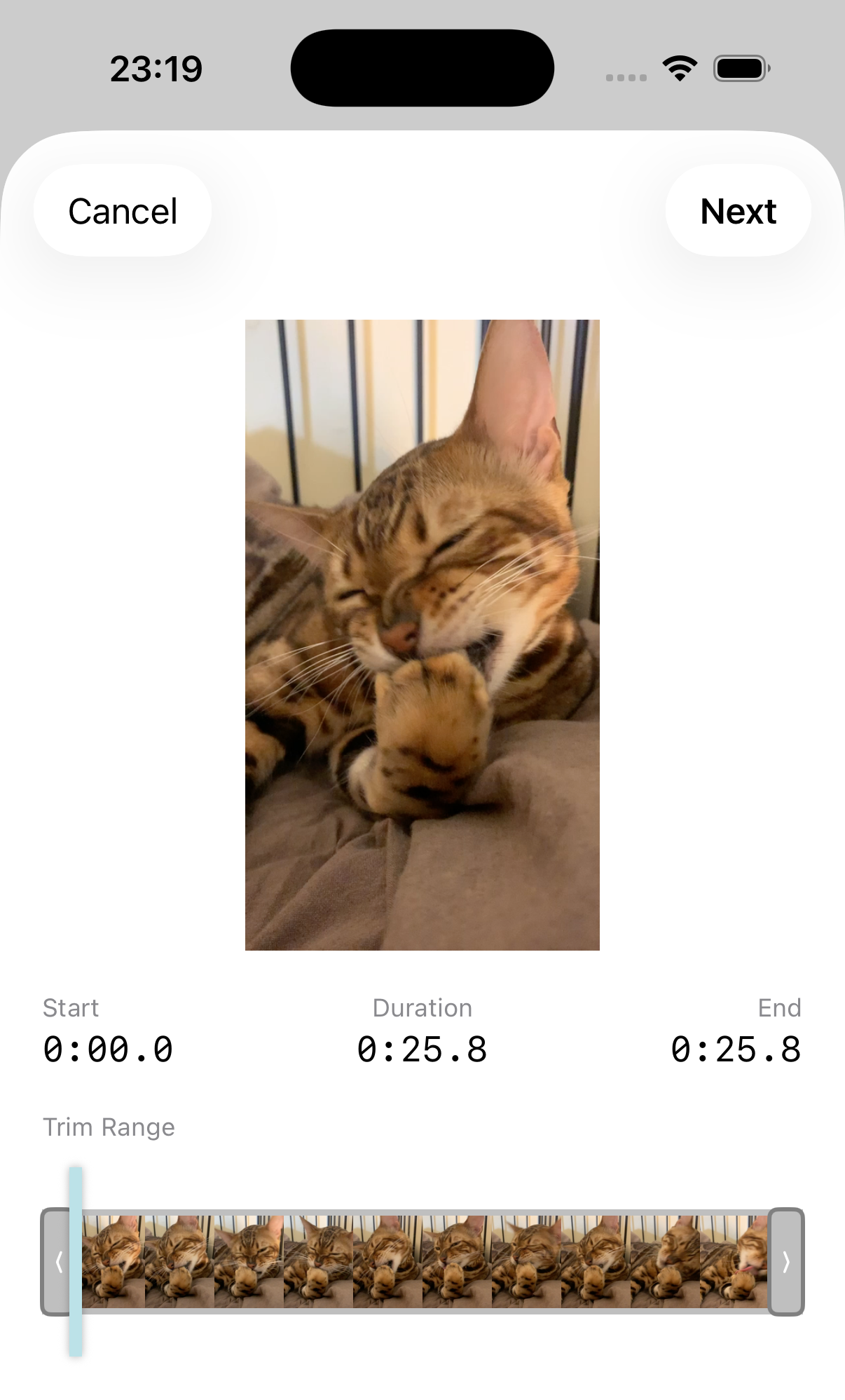
Videos up to 120 seconds are supported. You can trim the video when selecting it.
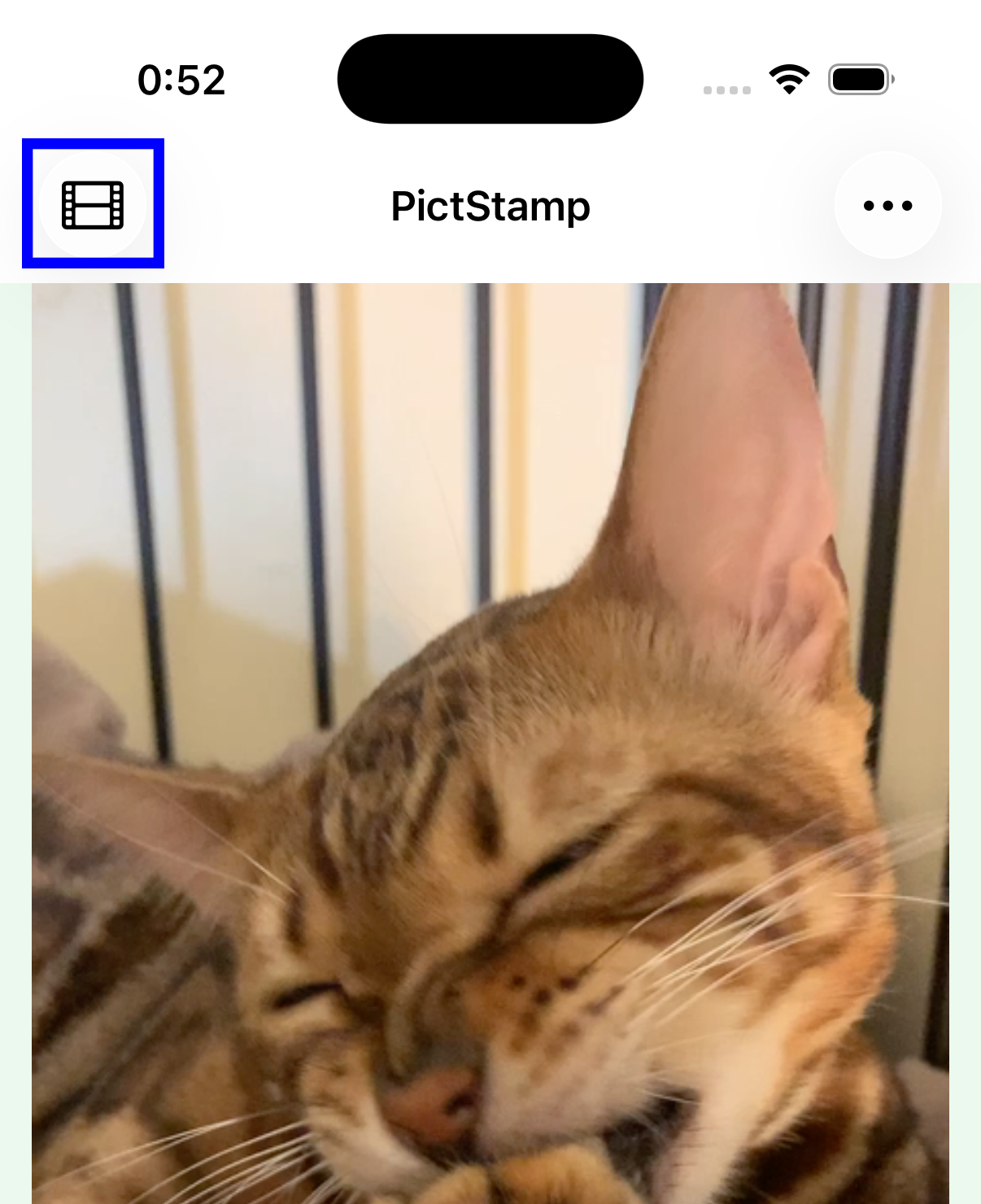
When a video is selected, a preview icon appears on the left side. Tap it to preview the video and check the playback position.
Watermark Images
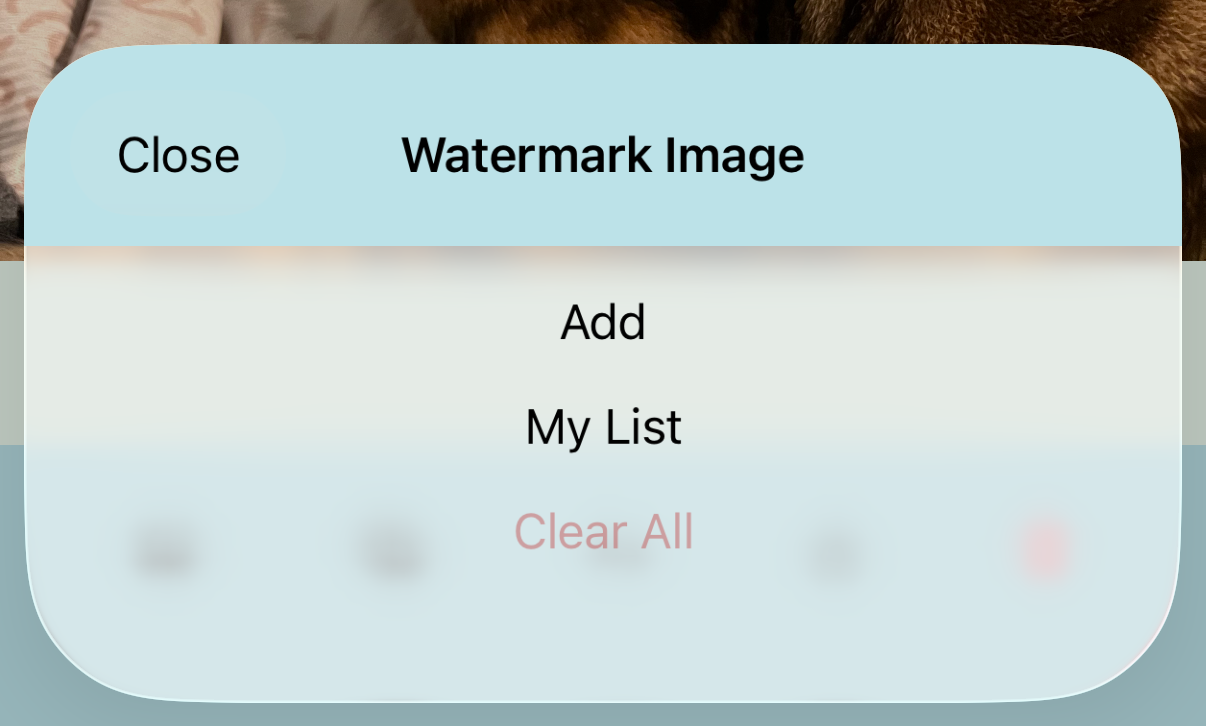
1. Add
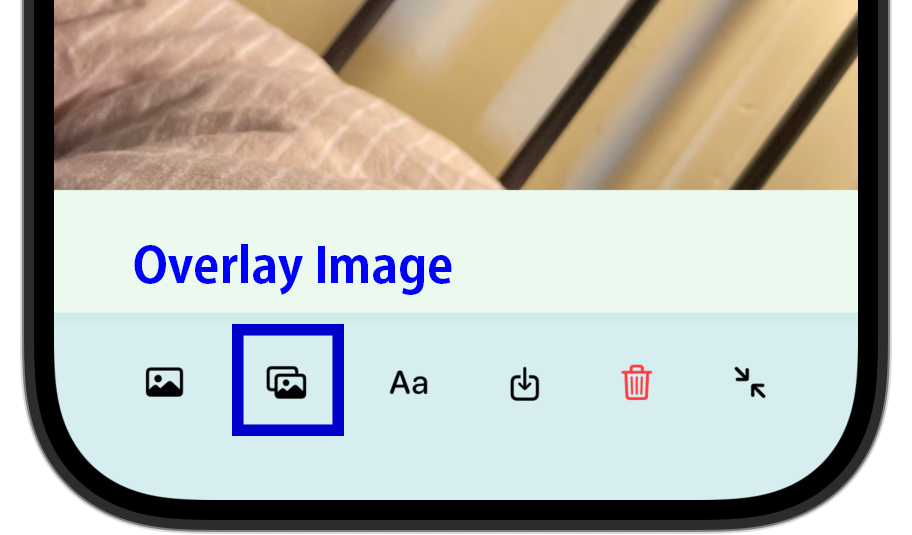
You can add watermark images such as logos or marks on top of the image or video. You can place up to 3 images on the screen.
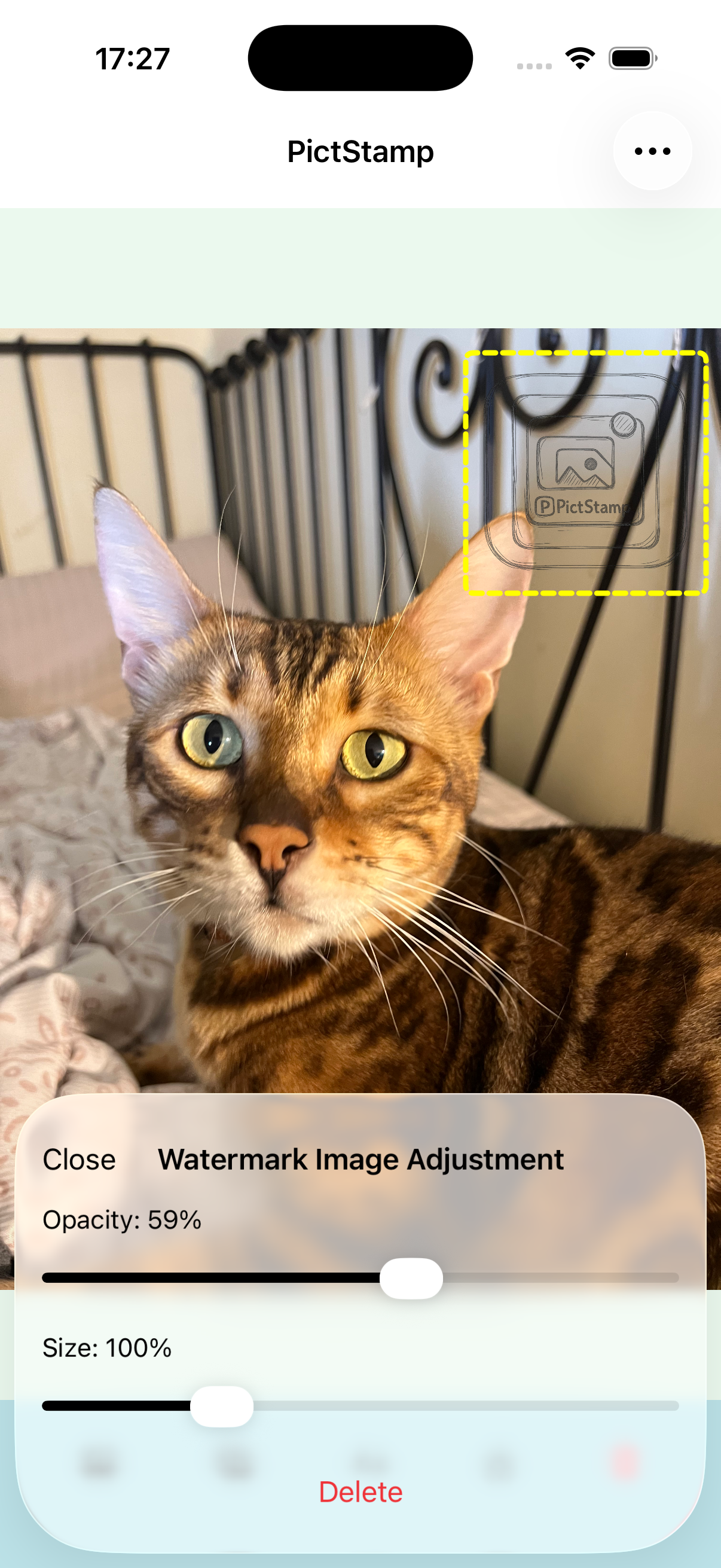
Double-tap a watermark image to adjust its size and opacity.
2. My List
Tap [+] at the top right to save up to 6 images to My List.
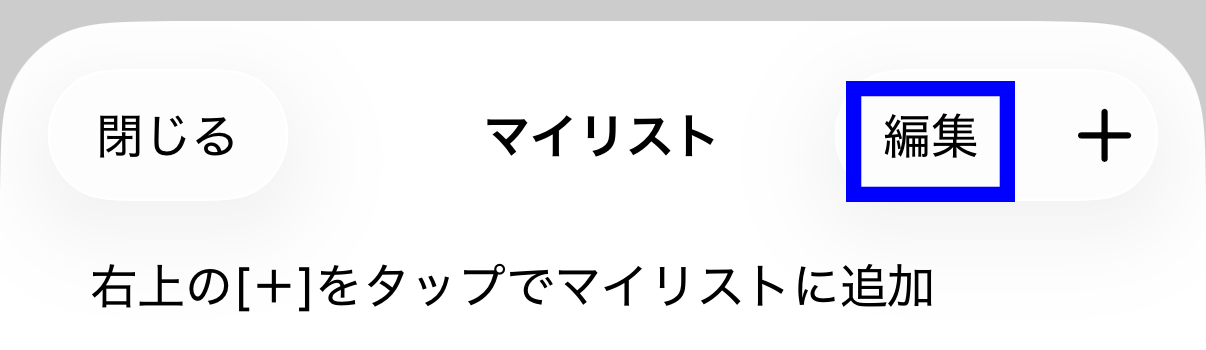
Tap an image in My List to place it on the main image or video.
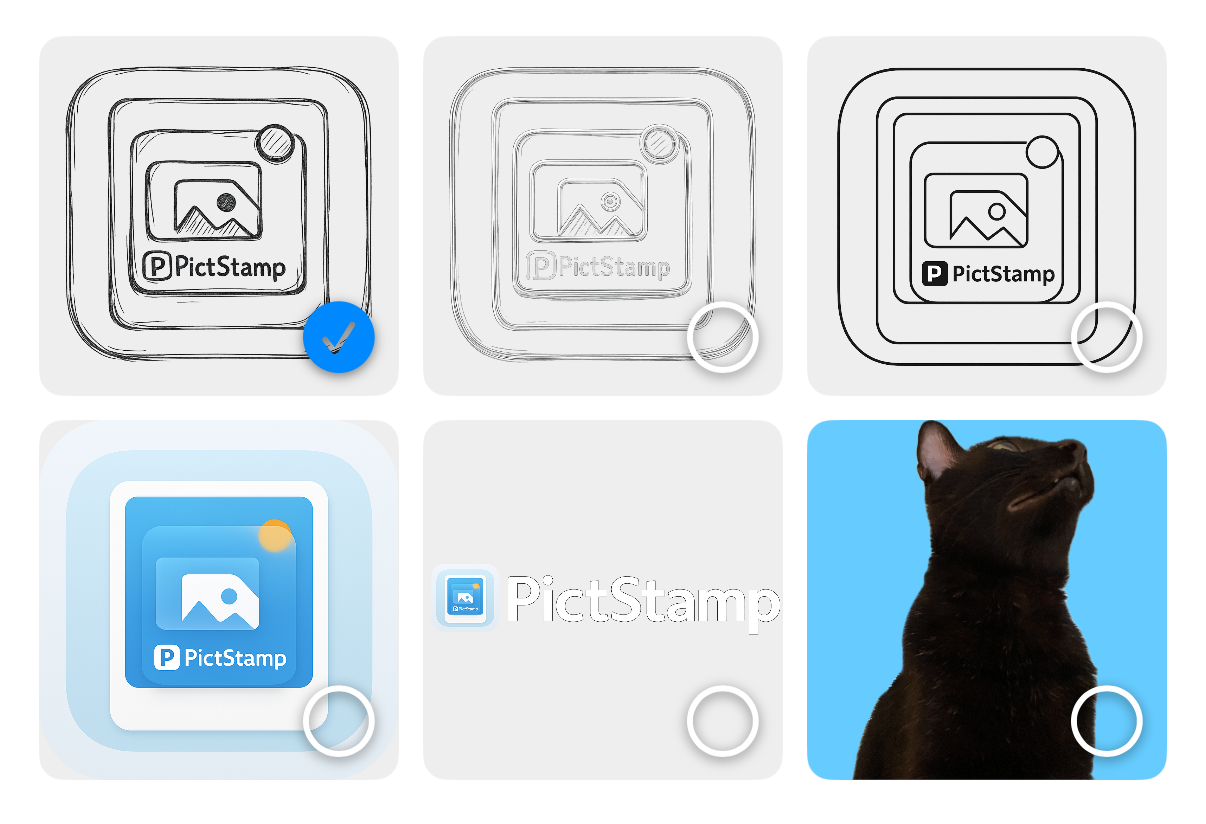
Long press an image in My List to enter multi-select mode.
3. Edit My List
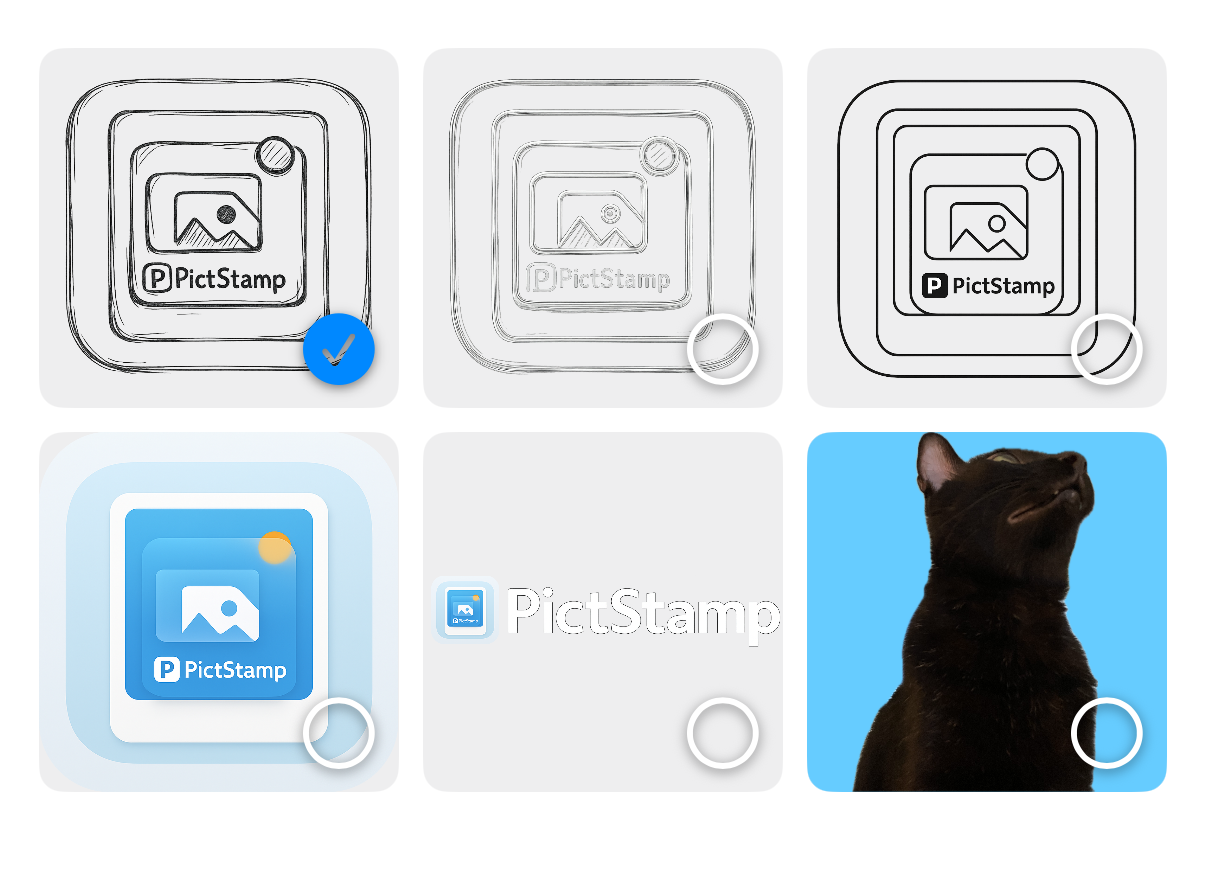
Tap Edit to enter edit mode. You can then delete and reorder items.
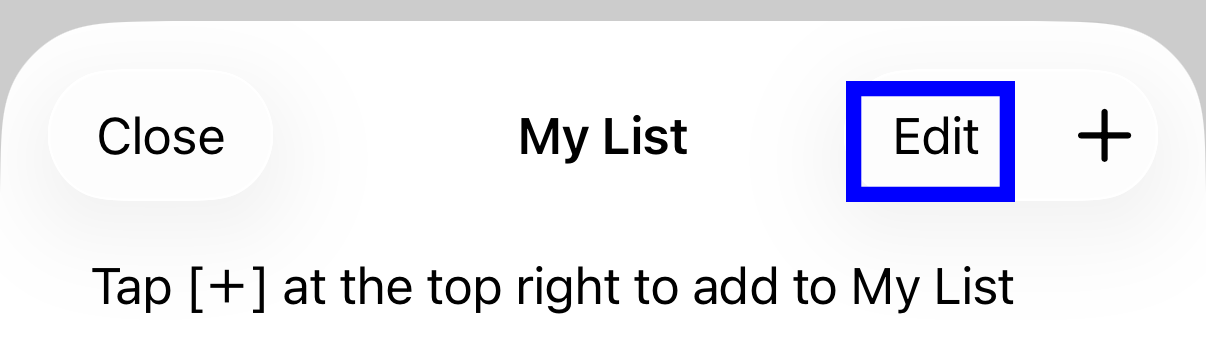
Long press and drag to reorder, tap the - button to select items for deletion.
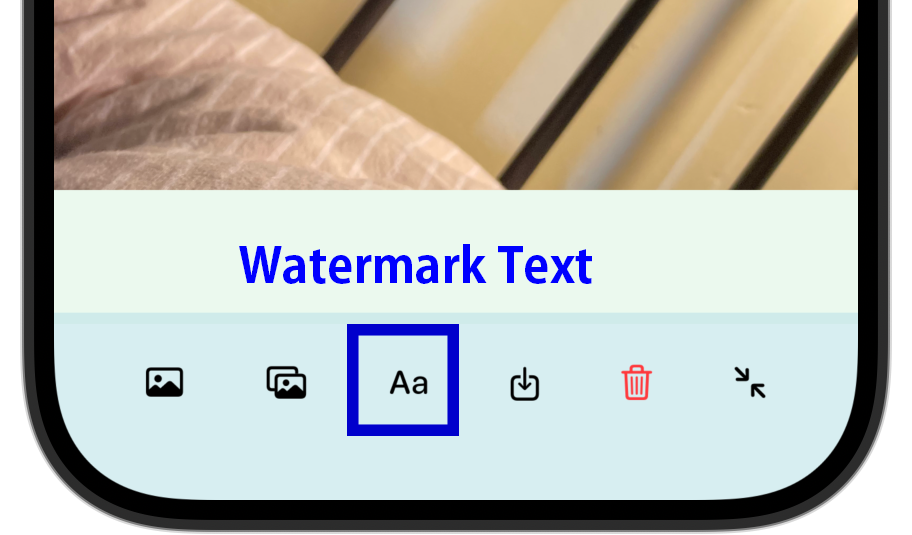
Watermark Text
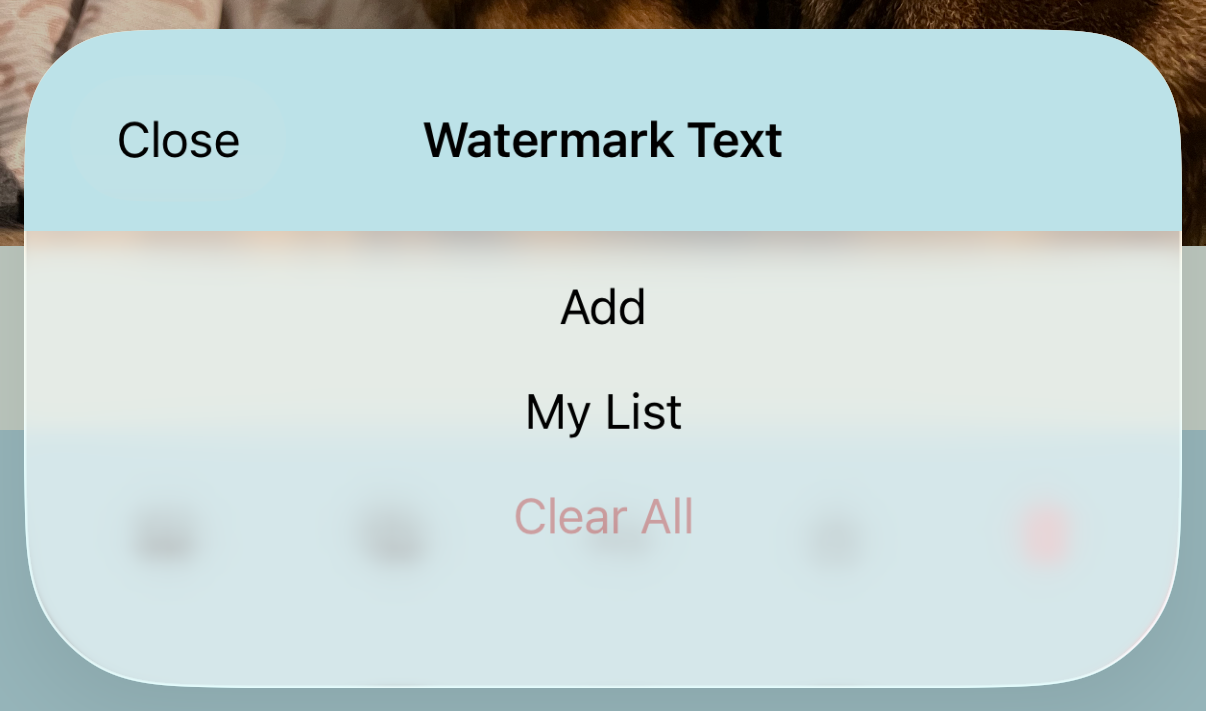
1. Add
You can add up to 5 watermark texts.
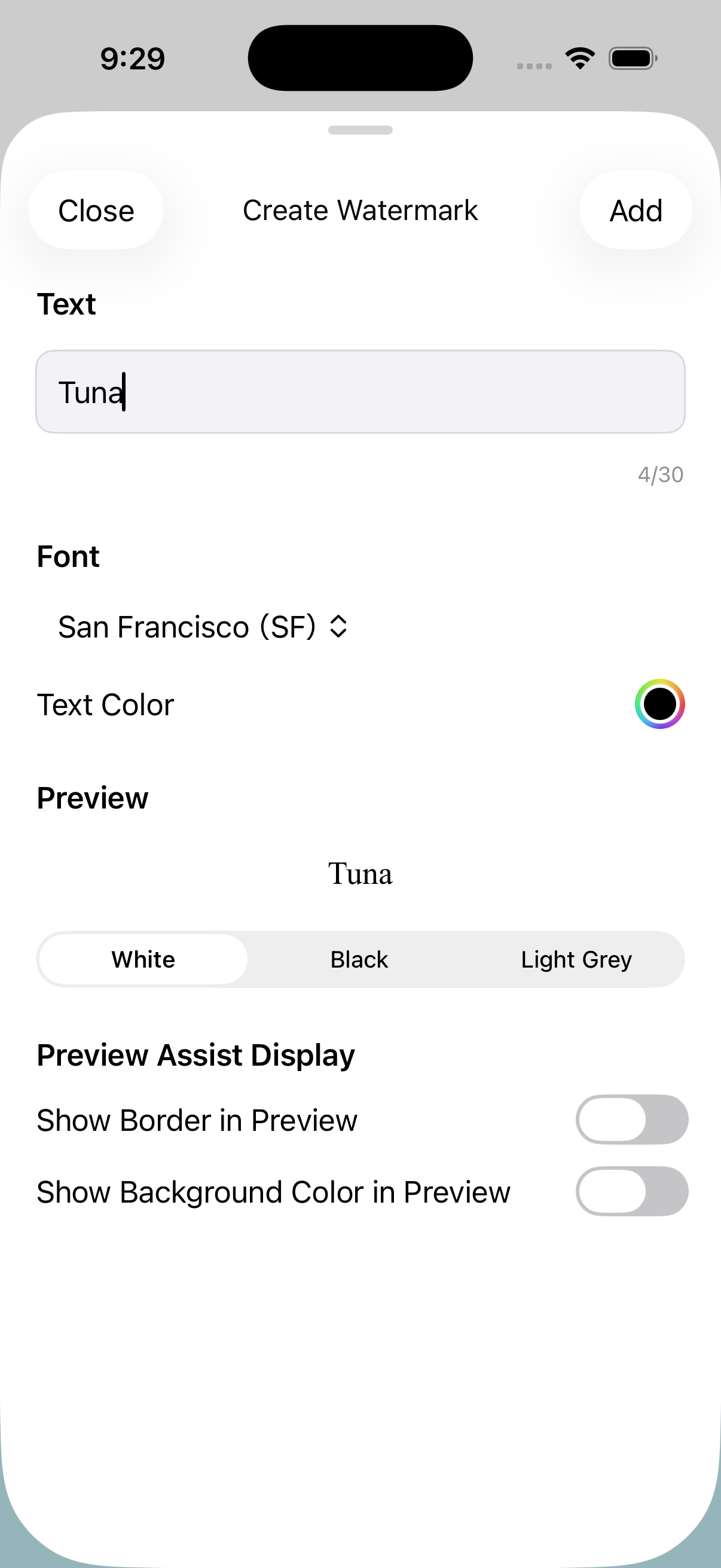
* The preview settings help you see the watermark text more clearly on the image and in My List. These settings will not appear in the saved image.
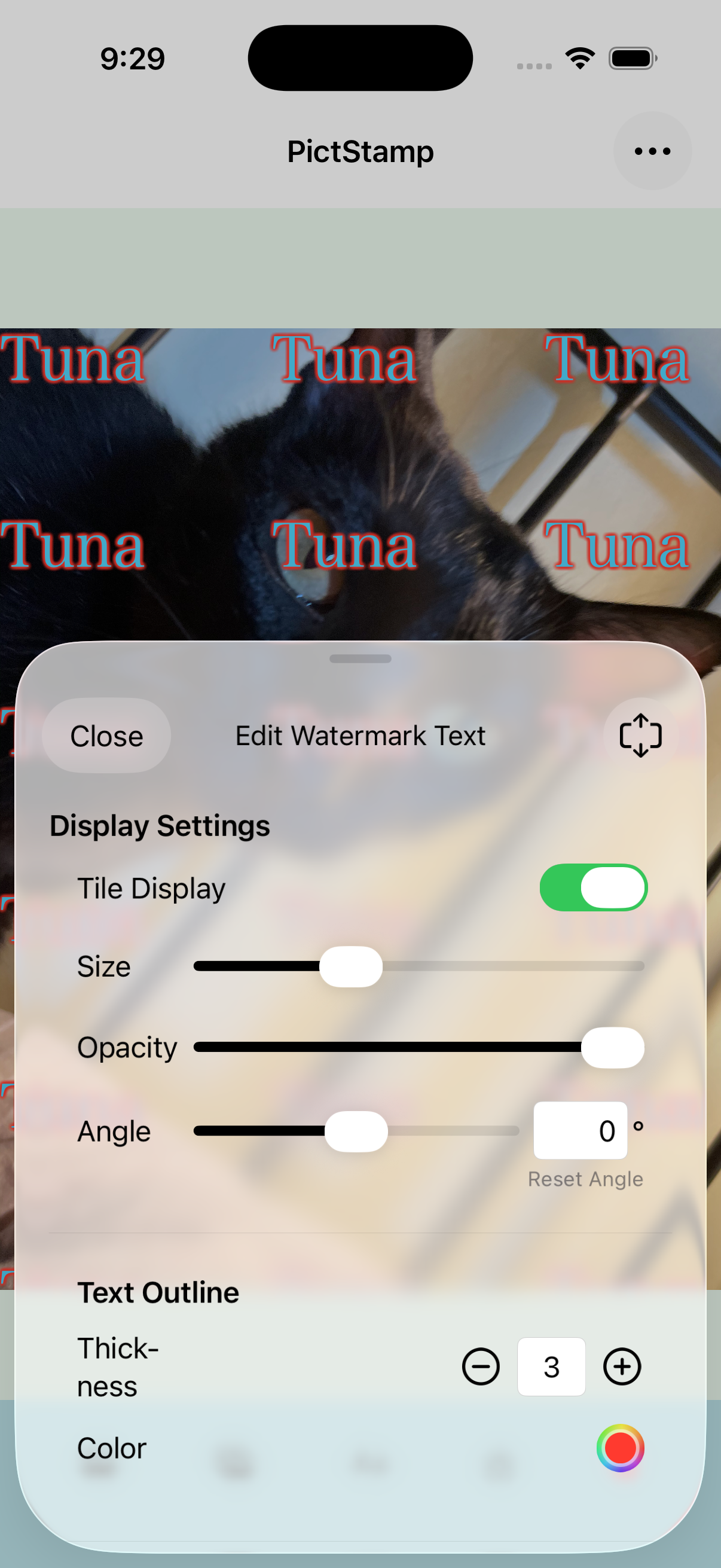
Double-tap the watermark text to adjust its size, opacity, angle, text outline, and more.
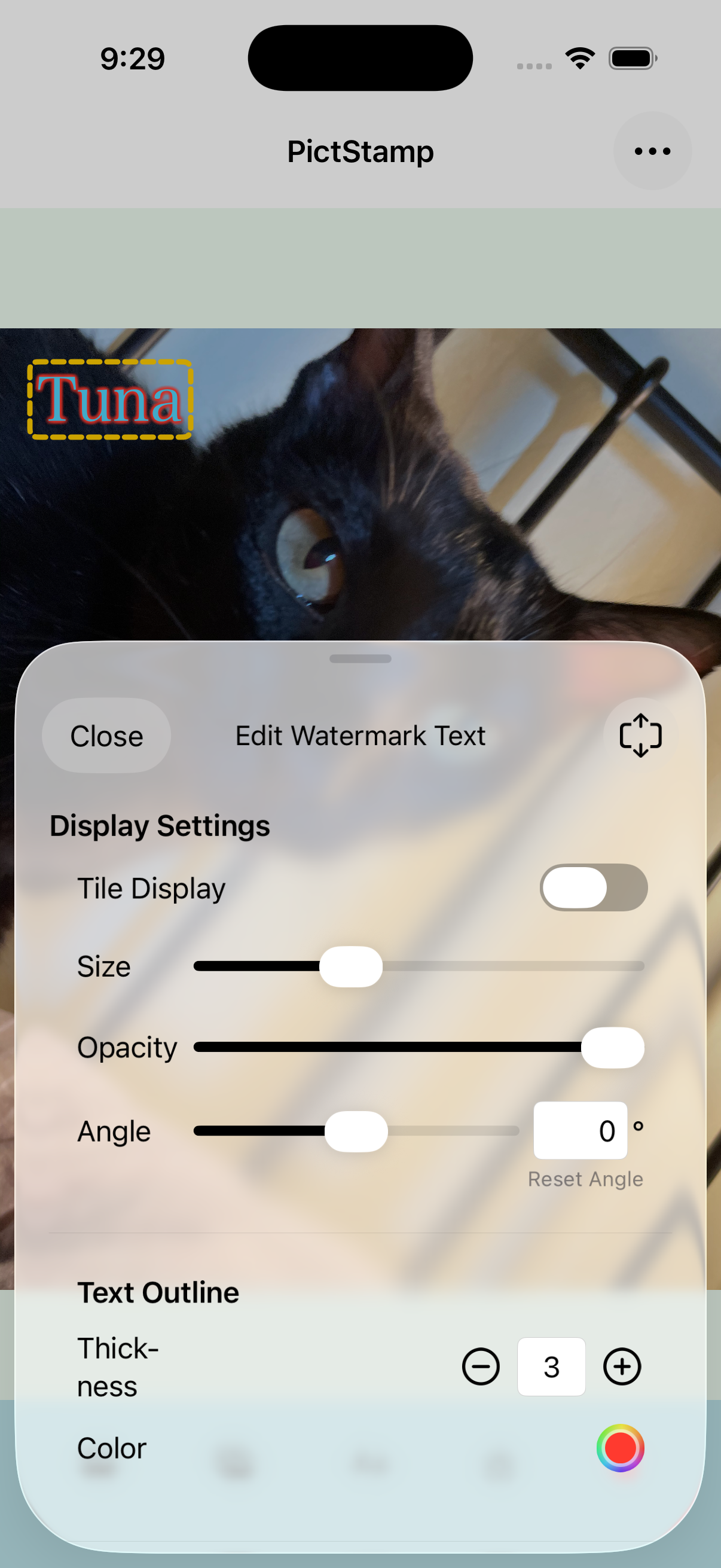
Pull up the sheet to see text editing options.
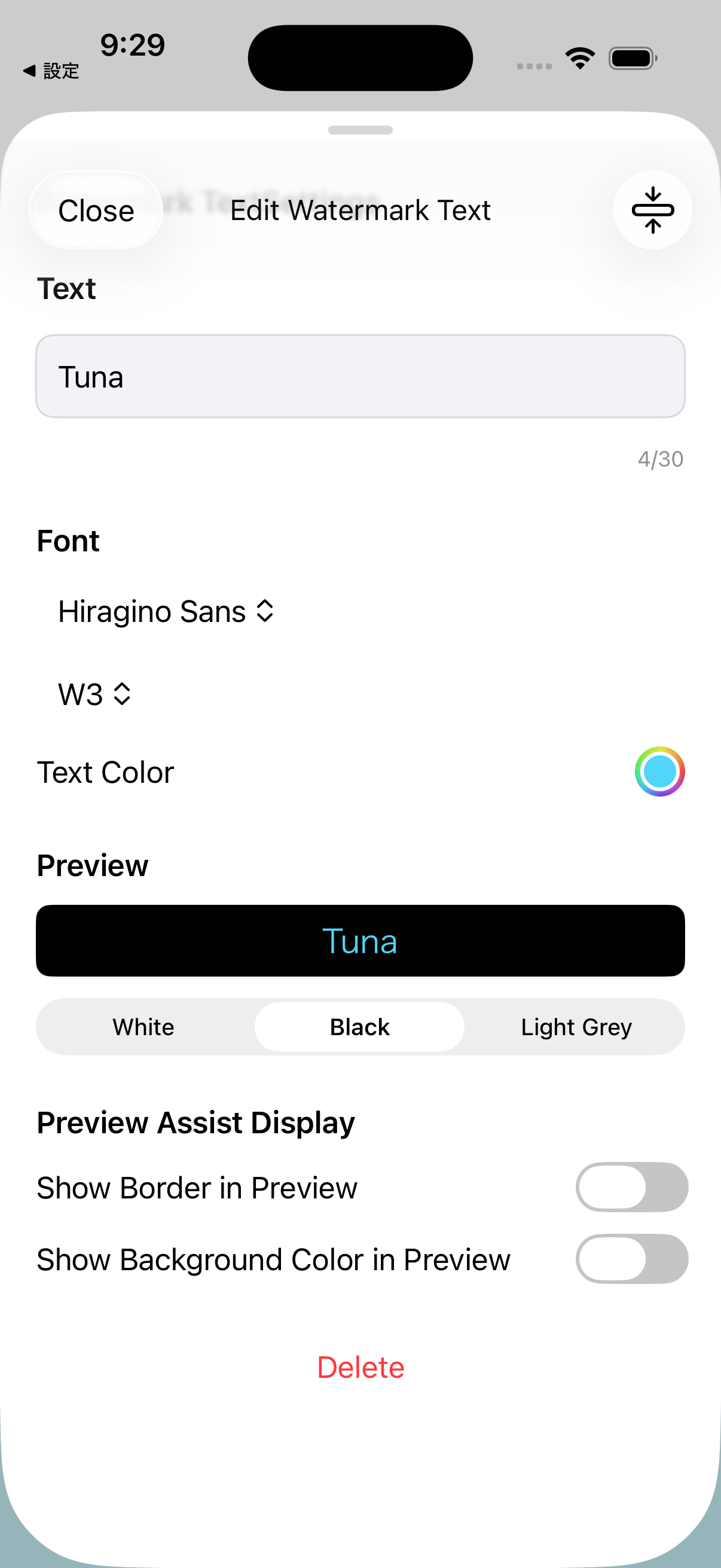
Enable tile display to fill the screen with repeated text.
2. My List
Save up to 10 watermark texts to My List using the '+' button.
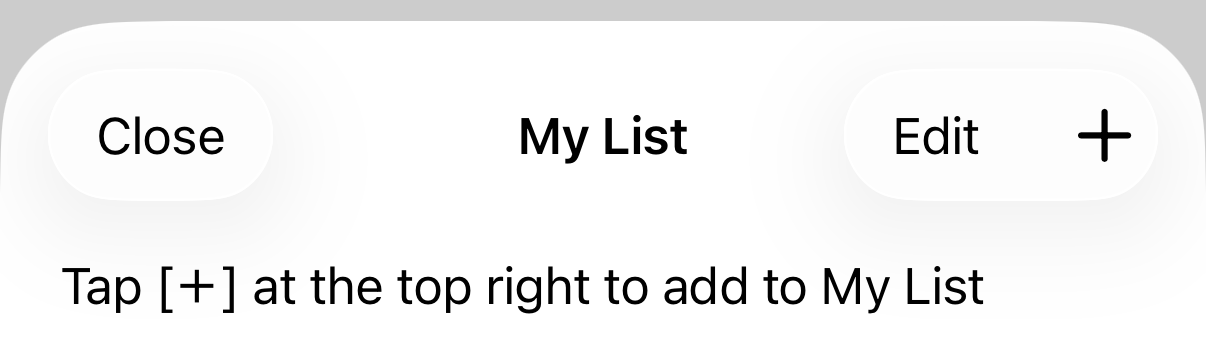
Tap a text from My List to add it as a watermark.
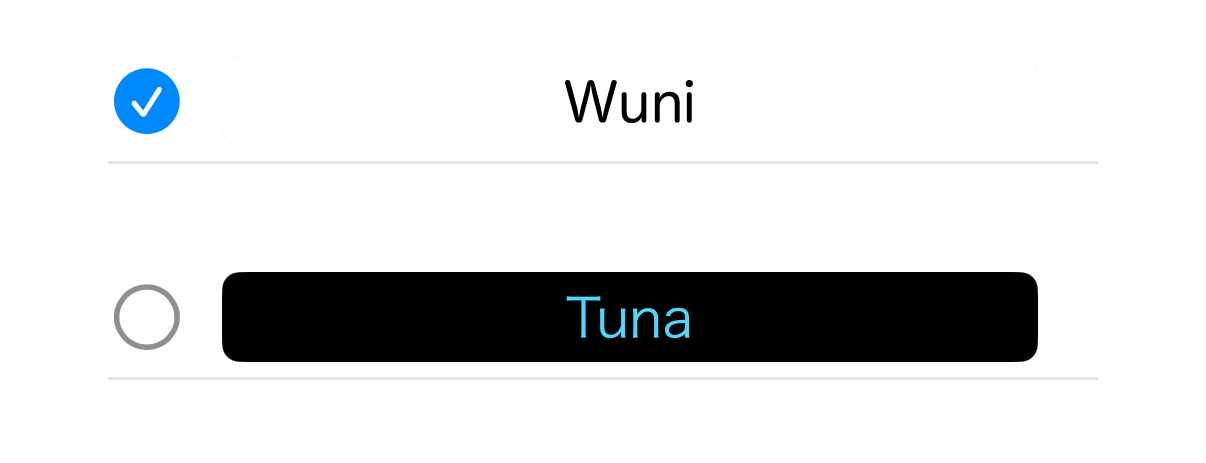
Long press an item in My List to enter multi-select mode.
3. Edit My List
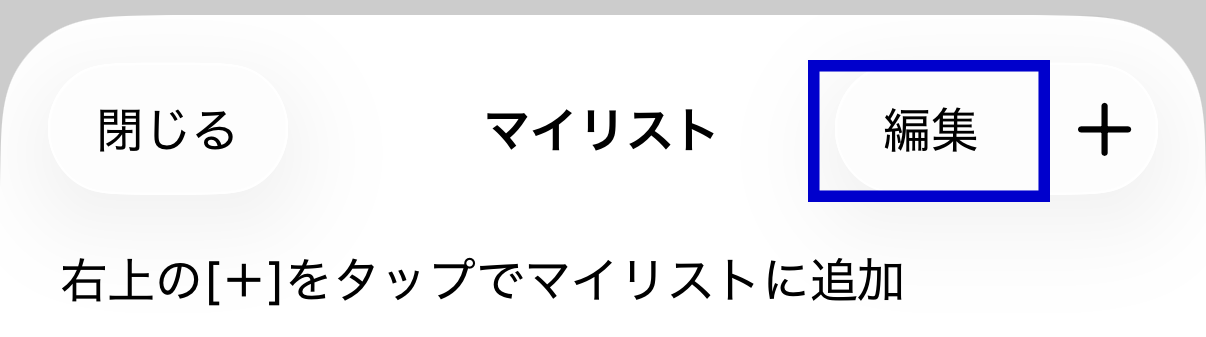
Tap the pencil icon on the right side of each item to edit that watermark text.
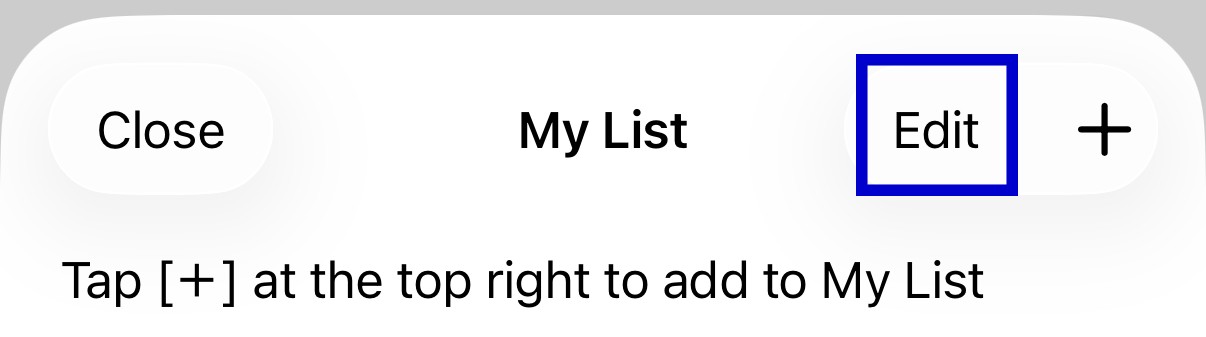
Tap the Edit button to delete or reorder your watermark texts.
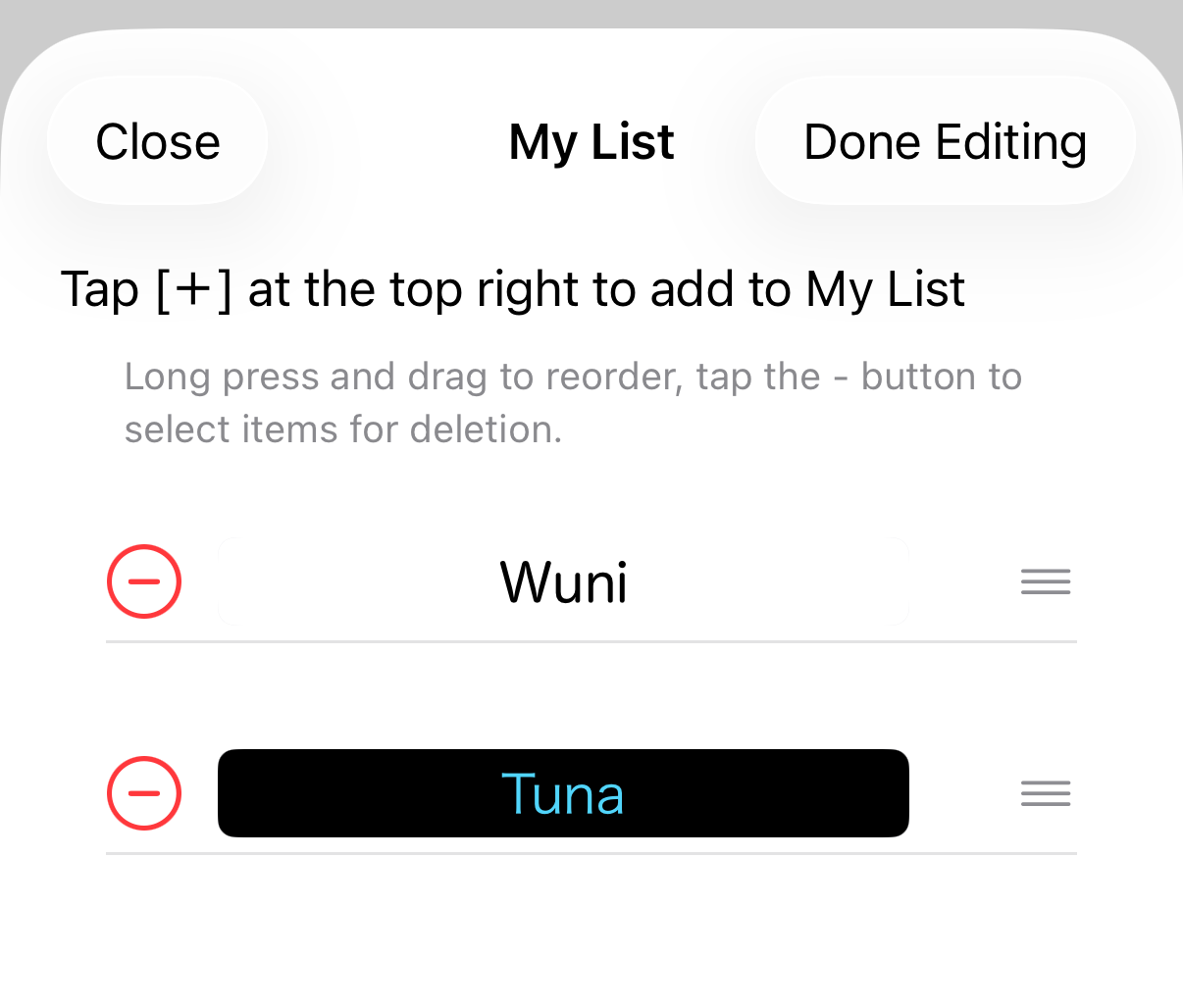
In edit mode, long press and drag the handle icon to reorder items in the list.
Save & Share
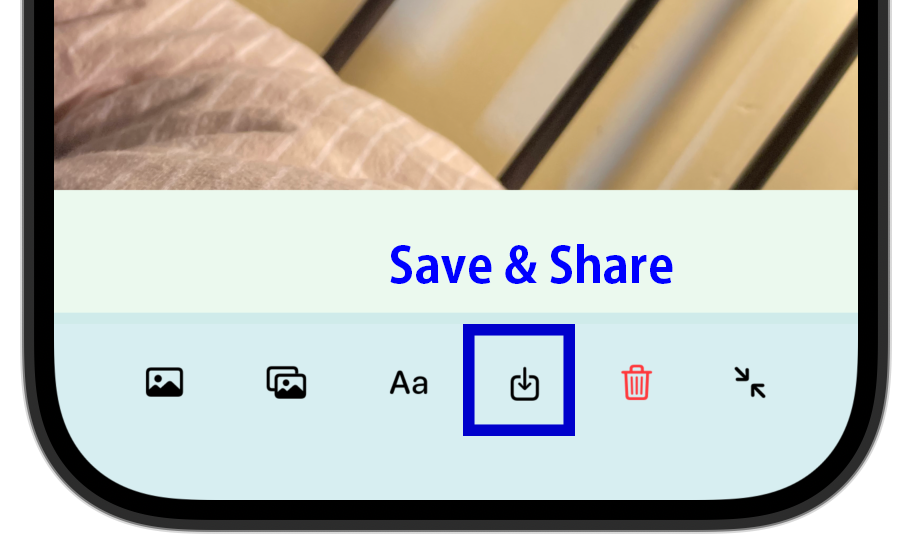
Save or share the edited image. You can select the pixel size and image format. When saving, the image will be saved to your photo library. When sharing, you can send it to other apps.
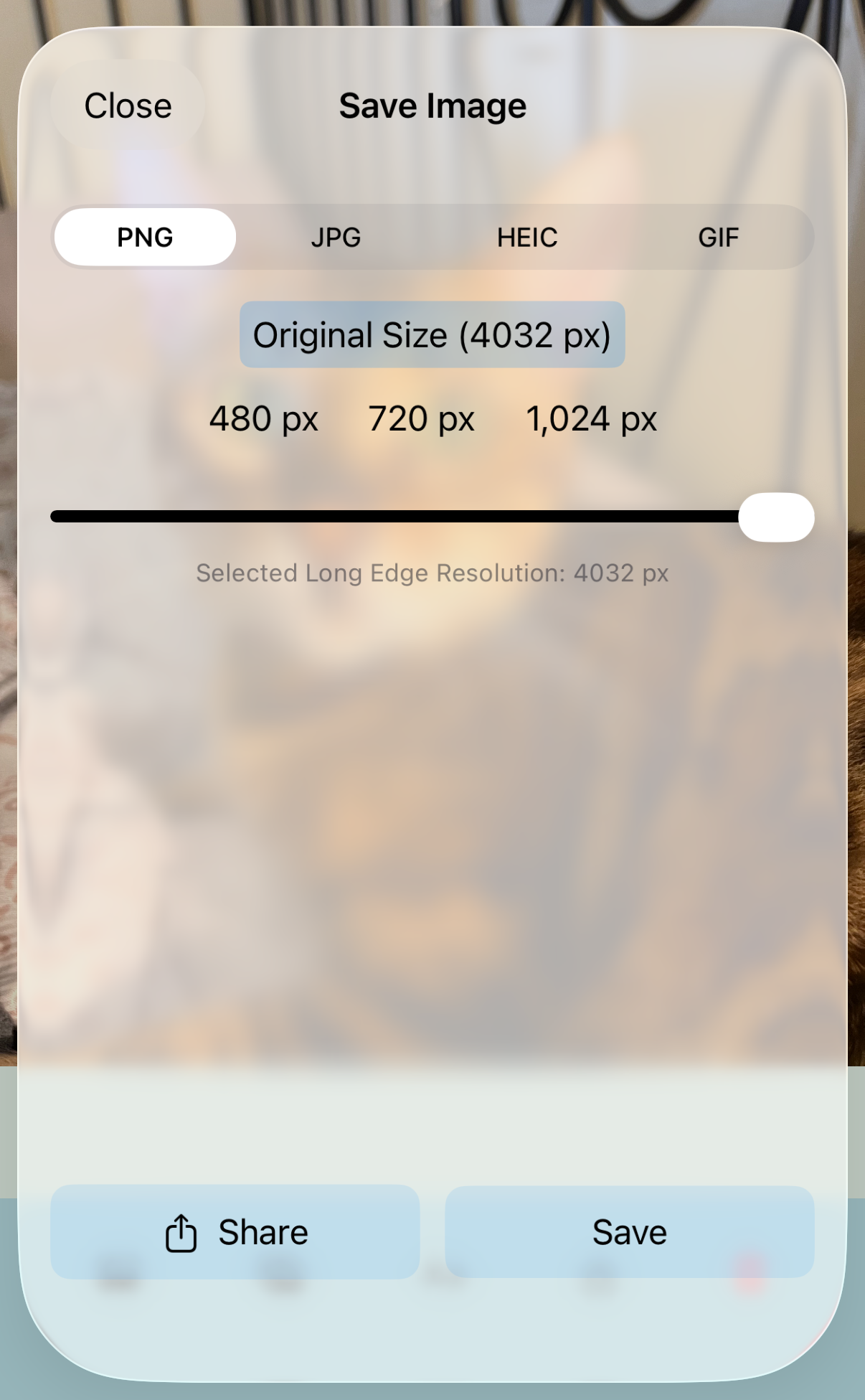
Saving as GIF
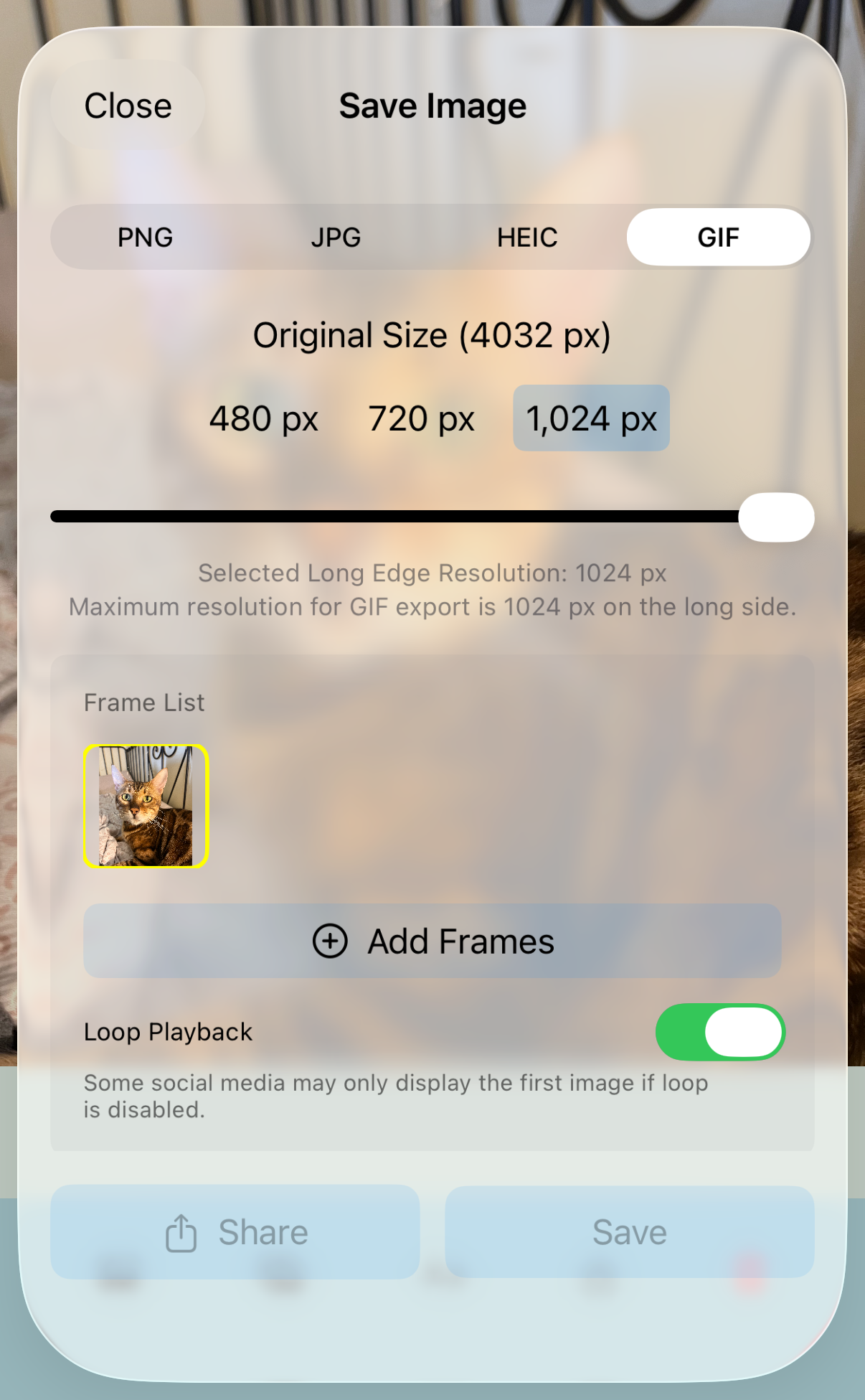
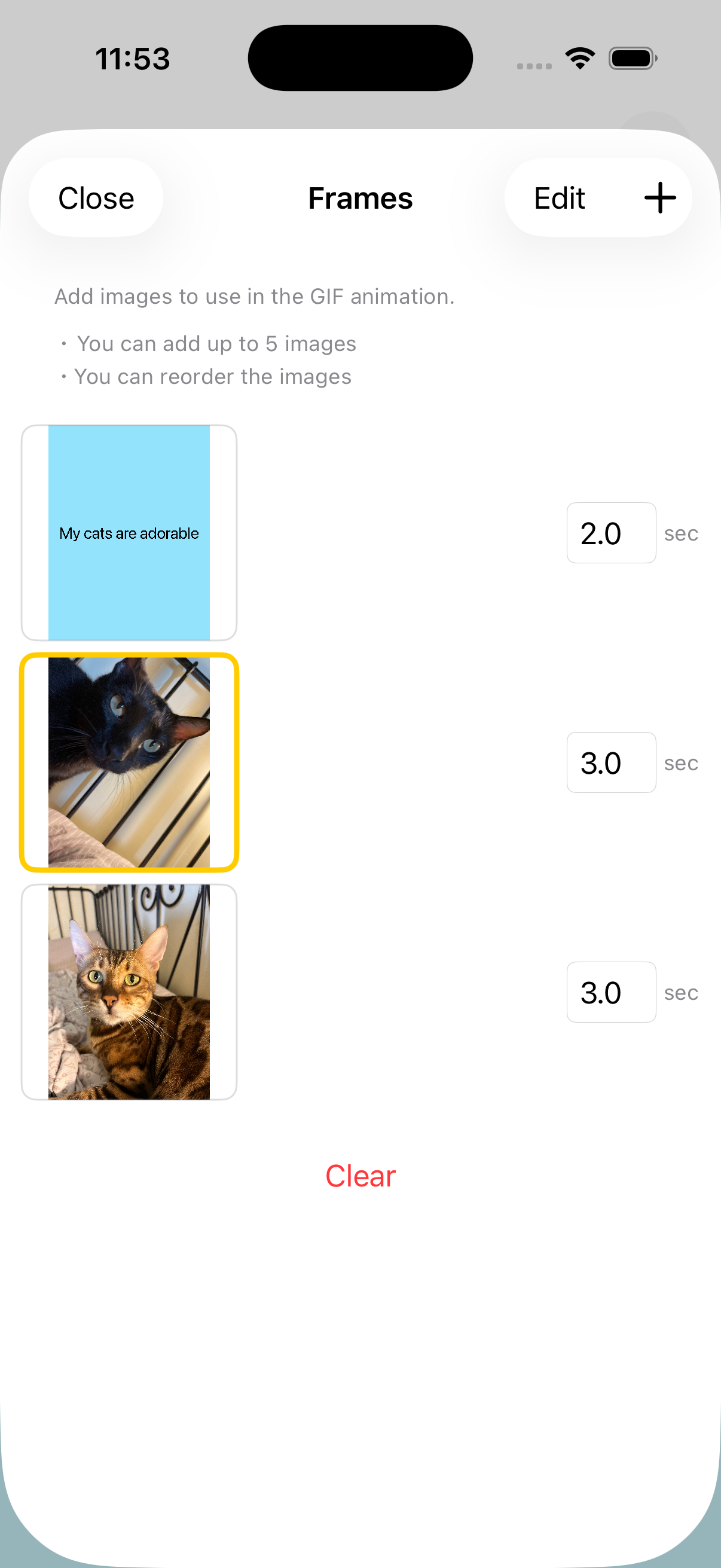
When saving or sharing in GIF format, you can create animations by combining multiple images. You can also set the frame duration, loop playback, and insert blank pages.
Clear
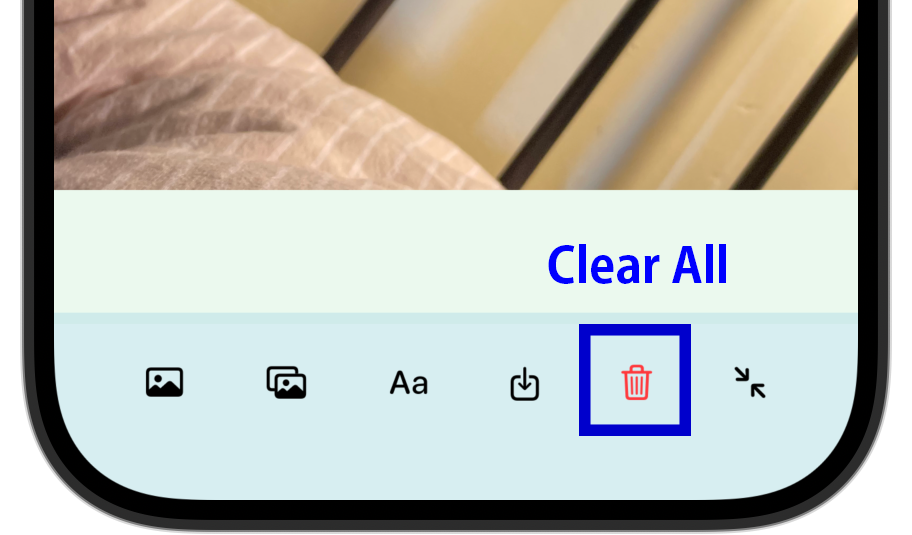
Reset the editing state. The main image/video, watermark images, and watermark text will be removed.